

Updates and Events
Reminder: NursingCAS 2026-2027 Configuration Portal
The 2026-2027 NursingCAS Configuration Portal opened on Monday, May 18. The 2026-2027 cycle will launch on Thursday, August 6. Programs launching on this date must submit configurations by Friday, July 3. While not required to launch on August 6, we encourage schools to consider this date to maximize recruitment exposure for your programs.
To access the 2026-2027 Configuration Portal, make sure you have selected the 2026-2027 cycle from the drop-down menu in the upper right of your dashboard in the Prelaunch Environment. Once the 2026-2027 cycle is selected, click “CAS Configuration Portal” in the left-hand navigation menu under the “Management” tile.
For a complete list of steps for configuring and submitting your pages, please reference the email sent from info@nursingcas.myliaison.com on Monday, May 18.
Required Webinar: Steps to Ensure a Successful 2026-2027 Cycle on August 11
Register now to attend our upcoming webinar, NursingCAS: Steps to Ensure a Successful 2026-2027 Cycle, on Tuesday, August 11 at 2:00 p.m. ET.
The following topics will be discussed:
- WebAdMIT best practices and efficiency measures: local statuses, list manager, faculty/committee member review feature, automated scoring features, and more
- Steps to managing your applicant pool
- Tips for analyzing your applicant pool and recruitment efforts with the Report Manager and Analytics by Liaison tools
At least one member from each institution must attend. If you cannot attend, please register to receive a copy of the recording.
Recording Available: NursingCAS Configuration Training Webinar
AACN recently hosted the NursingCAS: Configuration Training Webinar to prepare users for the upcoming 2026-2027 cycle. If you were unable to attend, please be sure to review the webinar recording and presentation slides. The following topics were discussed:
- Configuration portal terminology and the NursingCAS rollover process
- Steps for configuring your programs
- Features to streamline application reviews
- Best practices for closing out a cycle and preparing for a new cycle
Featured Liaison Learning Course | Three in 30: Real Recognizes Real - Dr. Phil Cook on Student Choice
Liaison International has launched Three in 30, a new video podcast series featuring campus and industry leaders as they discuss the trends shaping enrollment management and student success.
This episode explores how community has become the most powerful factor in student decision-making, outpacing academics, athletics, and other key factors that drive students to choose a college. Dr. Phil Cook (Lee University) explores the cost-perception gap that leads families to rule institutions in or out before enrollment teams even enter the conversation, sharing his presidential perspective on discounting and financial sustainability. Watch the episode today!
NursingCAS Applicant Newsletter
The NursingCAS Applicant Newsletter, provided by AACN, is emailed to 180,000+ NursingCAS applicants the third week of every month. This newsletter is for programs affiliated with NursingCAS only. Program submissions are FREE and due the Friday prior to publication.
Posts must relate to a program’s Open Seats, any Deadline Extensions that have been implemented, or New Programs that have launched in the Application Portal since the previous newsletter. We recommend including contact information for representatives or links to your website and the NursingCAS application within the announcement. Visit the Newsletter Archive for samples of previous submissions.
Submit an Item to the Applicant Newsletter today! Login is required to access the submission form.
NursingCAS Applicant Events Calendar
The NursingCAS Events Calendar allows you to publicize your program’s information sessions, virtual fairs, open houses, and other recruitment events that connect you with potential applicants!
Submit an Item to the Events Calendar today! Login is required to access the submission form.
NursingCAS 3+
NursingCAS will be upgraded to a new, mobile-first applicant portal for the 2026-2027 cycle. This new design, called CAS 3+, will include:
- A mobile-first experience: designed from the ground up to work beautifully on phones and tablets as well as on desktops, giving students full functionality wherever they access CAS from.
- Modern React-based design: faster, smoother, and more reliable user interface built with today's best web technologies.
- Streamlined application workflow: simplified steps, clearer navigation, and a guided pathway to complete applications.
- Accessibility and inclusivity: WCAG 2.2 A/AA-compliant design ensures the platform is usable by all applicants.
- Future-ready platform: built to grow with new features and tools without disrupting the application process.
Want to preview the new application before we launch on August 6? Set up a test account!
Subscribe to WebAdMIT Release Notes
WebAdMIT Release Notes provide a summary of enhancements and new features that are made available in the Applicant Portal, Applicant Gateway, Configuration Portal, Letters by Liaison, and WebAdMIT. Want to receive Release Notes emails? Subscribe here. See the complete list of recent enhancements in WebAdMIT Release Notes.
WebAdMIT Sandbox Environment Refresh
Are you utilizing the WebAdMIT Sandbox? If not, you should be! Sandbox is a duplicate test platform useful for testing and training purposes; any actions performed in Sandbox will not affect the live data in production. This tool provides users with a safe, “near-production” environment to test applications and run sample exports, among other actions. The Sandbox is a copy of the WebAdMIT production environment with sensitive applicant information (such as surnames, email addresses, etc.) obfuscated.
The WebAdMIT Sandbox is refreshed between 9:00 a.m. and 2:00 p.m. ET every Monday. If Monday is a U.S. or Canadian holiday, deployment is the next business day and includes all system changes from the preceding release. The WebAdMIT Sandbox environment is refreshed with current (cleansed) production data and program configurations. Any test exports, custom fields, etc., in the current Sandbox will be overwritten.

By The Numbers
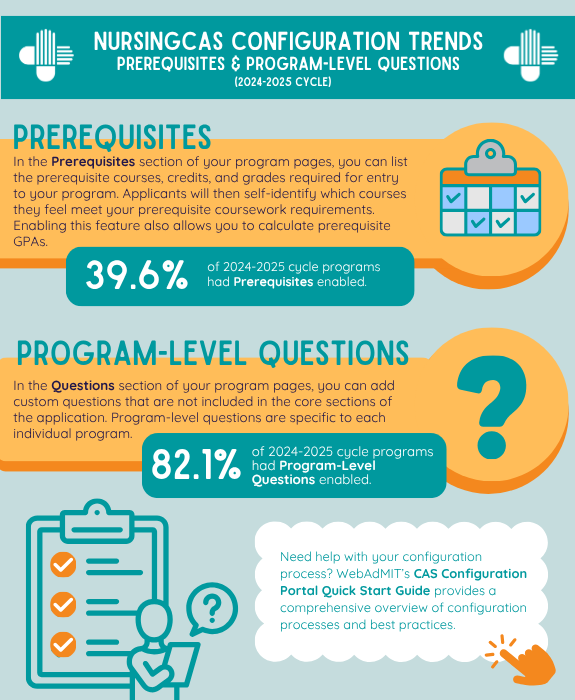
Configuration Trends: Prerequisites & Program-Level Questions
The fourth section of the NursingCAS application quadrant – “Program Materials” – collects information specific to your program. This section is customized by schools via the CAS Configuration Portal.
Using this portal, you can ensure that your program pages reflect your institution's branding and provide applicants with core program details (including eligibility requirements and deadlines). You can also enable sections in your application that request additional information relevant to your program, such as prerequisite courses and program-level questions.
In the 2024-2025 NursingCAS Cycle:
- 39.6% of programs enabled Prerequisites: In the Prerequisites section of your program pages, you can list the prerequisite courses, credits, and grades required for entry into your program. Applicants will then self-identify which courses they feel meet your prerequisite coursework requirements. Configuring this section also enables you to calculate prerequisite GPAs.
For more information on configuring this section, visit the prerequisite courses resource in the WebAdMIT Help Center.
- 82.1% of programs enabled Program-Level Questions: In the Questions section of your program pages, you can add custom questions that are not included in the core sections of the application. Program-level questions are specific to each individual program. This feature is useful if you have specific questions geared toward certain programs (e.g., completing a short-answer question for a doctoral program or choosing from a list of possible tracks for a master's program).
For more information on configuring this section, visit the program-level questions resource in the WebAdMIT Help Center.
For an overview of the customization options available for your programs, visit the Customizing Your Programs resource in the CAS Configuration Portal Help Center.

Q&A
Q: How do I preview my programs in WebAdMIT?
A: Once you're done configuring your home page, branding, and additional sections, there are a few methods that allow you to preview how your program page will appear to applicants in the application.
Method 1: Previewing Programs in the Application Prelaunch Environment
With this method, you can use WebAdMIT's Prelaunch Environment to access the NursingCAS Configuration Portal and preview your program in the application's prelaunch environment. To preview your program, it must be in Draft status.
- Log in to WebAdMIT's prelaunch environment, then open the CAS Configuration Portal from the Management panel.
- Navigate to the appropriate application cycle and organization/school.
- Determine if you want to preview all programs at your organization or a specific program.
To preview all programs at your organization, select On for the Preview toggle on the Organization Details page.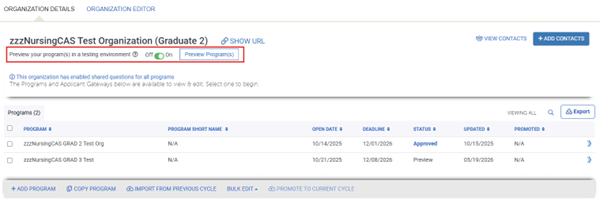
To preview a specific program, open the program and select On for the Preview toggle on the Program Details page.
- Click Preview Program(s). This button links you to the application's prelaunch environment.
- Log in to the application. If you do not have an account, create one.
- Your organization will be prefiltered on the Add Program page. Select the programs you want to preview.
- Navigate to the My Application tab.
- Click Program Materials to preview your programs.
- NOTE: Once you're ready to submit your programs for approval, you must select Off for the Preview toggle.
Method 2: Previewing Programs in the NursingCAS Configuration Portal
With this method, you can use WebAdMIT's Prelaunch environment or WebAdMIT's Production (i.e., live) environment to preview your program directly in the CAS Configuration Portal.
Note that when previewing programs via this method, you can only view how the page looks for applicants; you cannot interact with any of the elements (e.g., drop-downs, text fields).
- Depending on the program(s) you want to preview, log in to WebAdMIT's Prelaunch or Production environment, then open the CAS Configuration Portal from the Management panel.
- Navigate to the appropriate application cycle and organization/school, then open the program you want to preview.
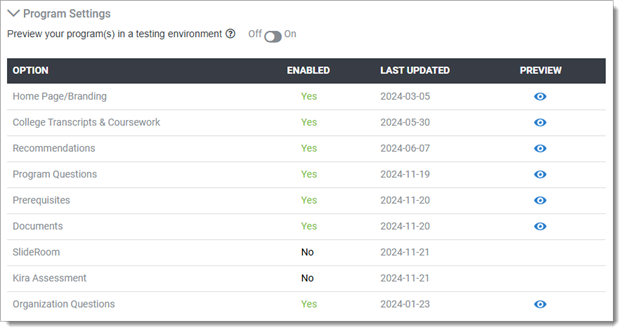
- From the Program Details page, scroll down to the Program Settings section and confirm that the sections you want to include are enabled. Sections that are not enabled will not be visible in the application.
- Click the eye icon to preview each section.
Carefully review each page to confirm that the formatting and requirements are correct and make any necessary edits before submitting your program for approval. Review the CAS Configuration Portal Best Practices for suggestions on how to effectively position your program and requirements.

Additional Resources